Routing alerts
Decide which monitors send to which channels.
Routing is how you connect monitors to channels. You might send everything to email, route one client's sites to Slack and another's to Discord, or push critical monitors to several channels at once. The Alerts screen makes this quick.
The idea
The Alerts screen is organized by channel. Each channel is a card that shows what it is and which monitors currently alert to it. You create a channel once, then choose which monitors use it.
Route a channel to monitors
- Go to Alerts.
- On the channel you want, select Edit.
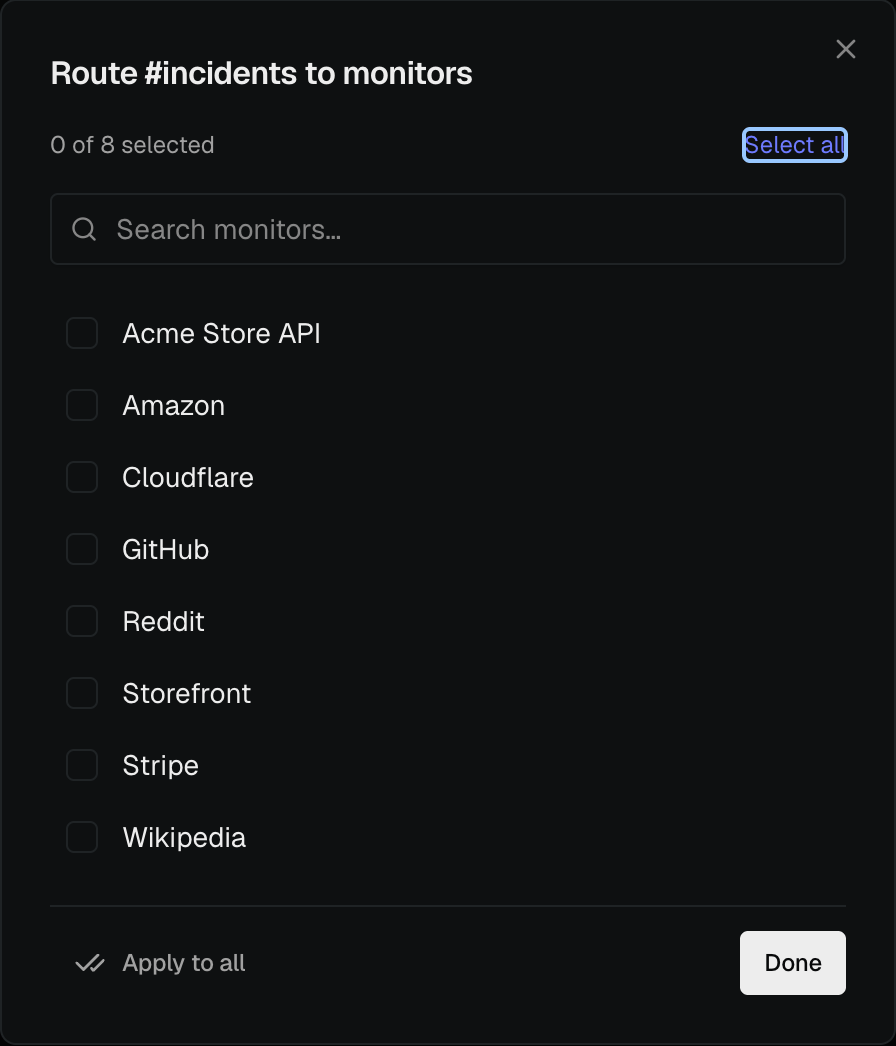
- Tick the monitors that should alert to this channel. Use the search box, or Select all, when you have a long list.
- Select Done.
The card updates to show how many monitors it now covers.
Apply a channel to every monitor
To send a channel to your whole list in one step, open the channel's menu and choose Apply to all monitors. This is the fastest way to make sure nothing is left uncovered.
Set a default channel
Mark a channel as the default to have it automatically attached to new monitors you create later, so you never forget to wire up alerts for a fresh monitor.
Remove a monitor from a channel
On the channel card, select the small remove control on a monitor to stop it alerting there. The change takes effect immediately.
Watch for gaps
The Alerts screen flags monitors that have no channel at all, because a monitor with no alerts cannot tell you when it goes down. If you see that warning, route those monitors to at least one channel.