Alerts
Slack alerts
Send alerts to a Slack channel.
Route PageWarden alerts into a Slack channel so incidents land in front of your team right away.
Available on: paid plans (Hobby and above).
Set it up
First, create an incoming webhook in Slack:
- In Slack, create or open an incoming webhook for the channel you want (from the Slack app directory, add Incoming Webhooks and choose the channel).
- Copy the webhook URL Slack gives you.
Then add it in PageWarden:
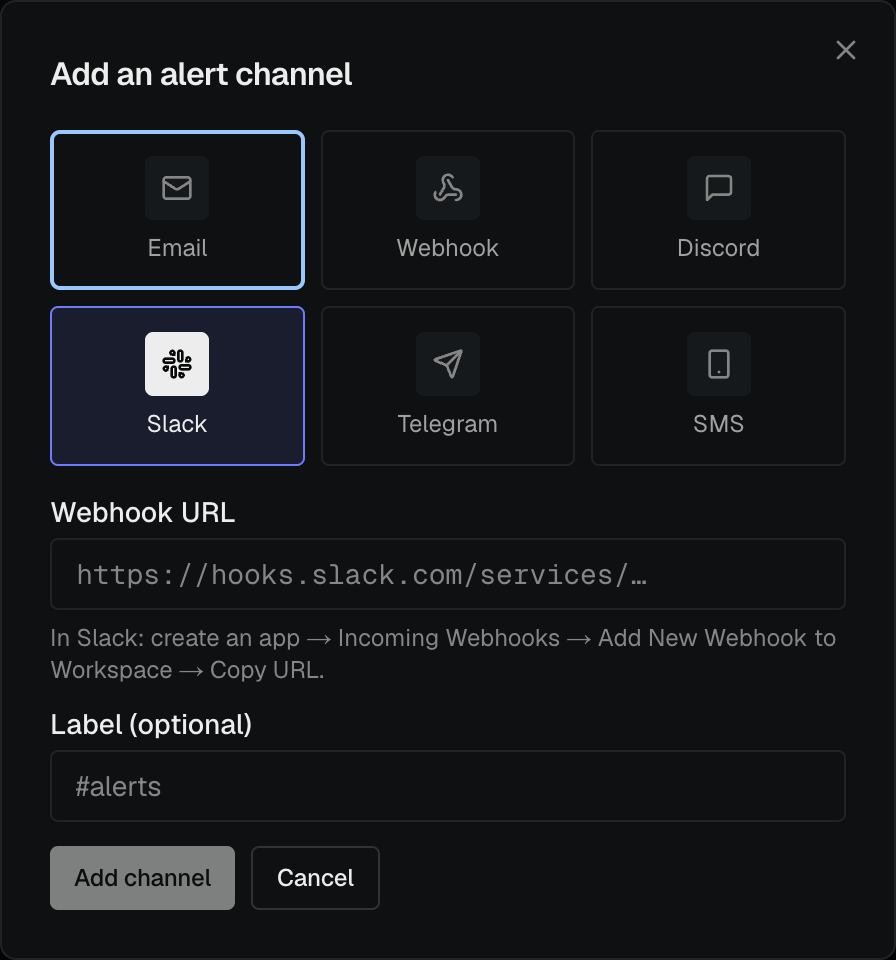
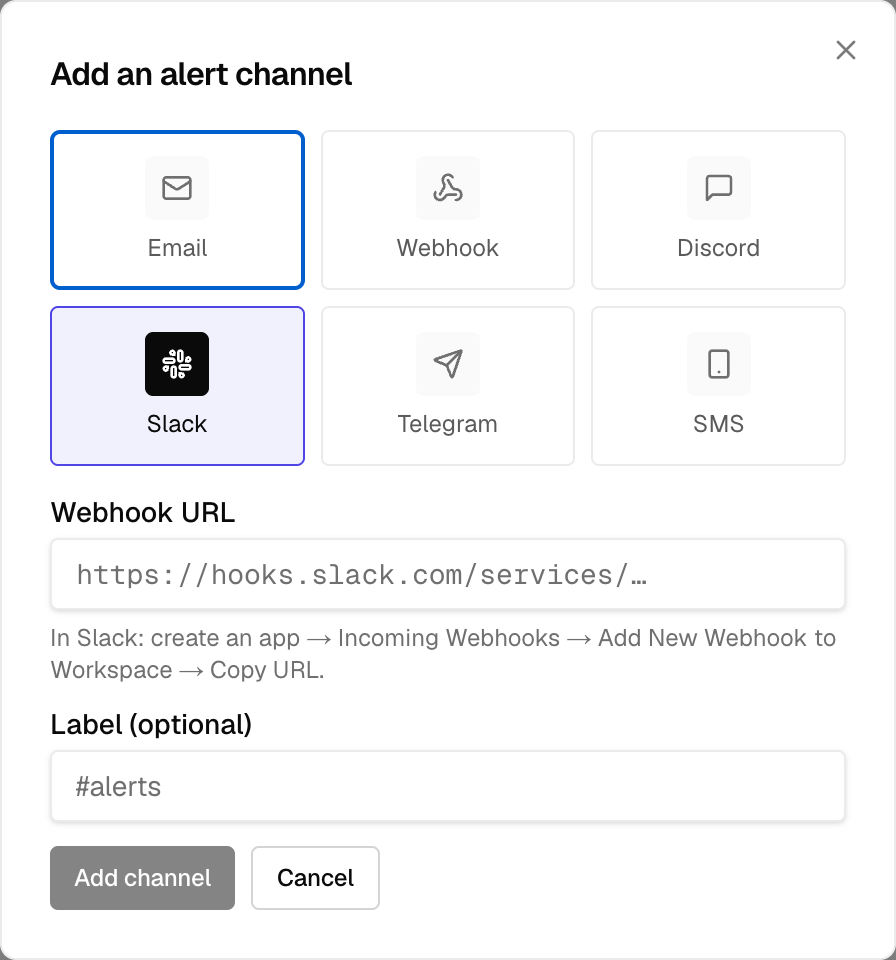
- Go to Alerts and select Add channel.
- Choose Slack.
- Paste the webhook URL.
- Open the new channel's ⋮ menu and choose Send test to confirm a message appears in the channel.
Good to know
- The webhook is tied to one Slack channel. To alert more than one channel, add a Slack channel in PageWarden for each.
- Everyone in the Slack channel sees the alerts, so choose the channel with that in mind.