Getting started
Set up your first alert
Choose how PageWarden tells you when something breaks.
An alert is how PageWarden reaches you when a monitor has a problem, and again when it recovers. Every plan includes email alerts. Paid plans add more channels.
Turn on email alerts
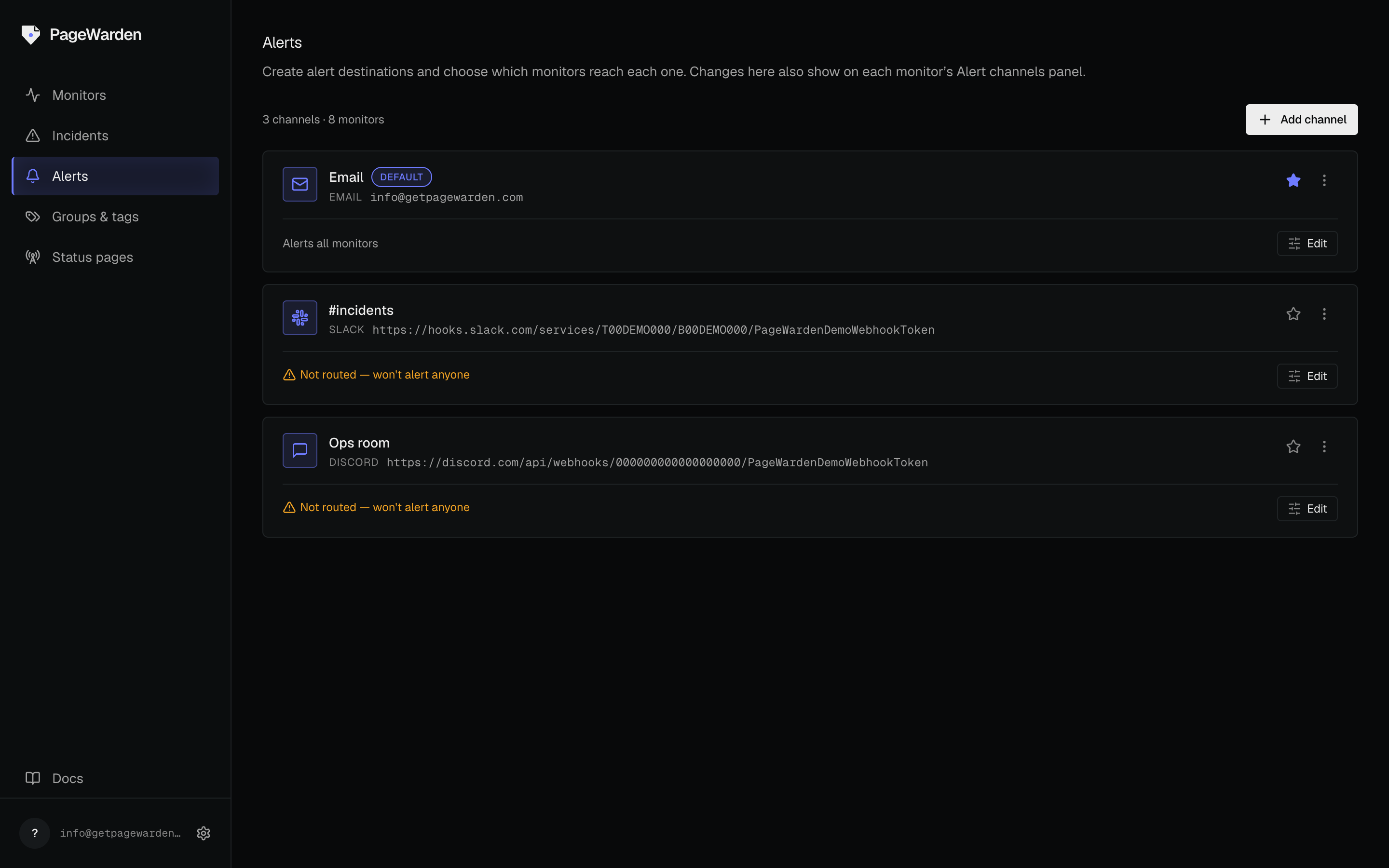
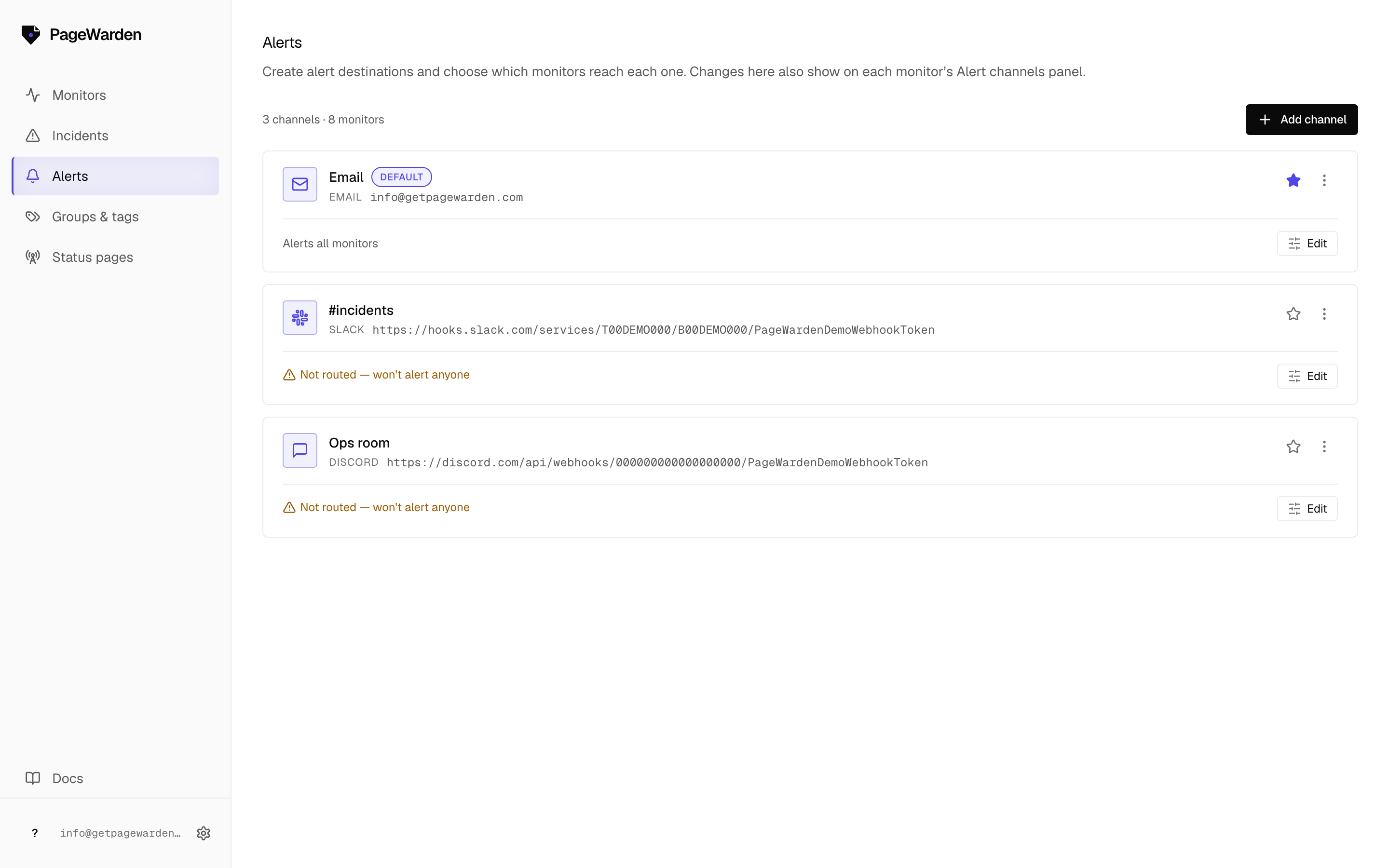
Email is on by default, sent to the address on your account. To confirm it is working:
- Go to Alerts in the sidebar.
- Find your email channel.
- Open its ⋮ menu and choose Send test to receive a sample alert right away.
Add another channel
On a paid plan you can also send alerts to Slack, Discord, Telegram, or your own webhook. To add one:
- On the Alerts page, select Add channel.
- Choose the channel type and follow the short setup for it. Each type has its own guide: Slack, Discord, Telegram, Webhook.
- Open the channel's ⋮ menu and choose Send test to confirm it works before you rely on it.
Decide which monitors use which channel
You control which monitors alert which channels. You can send everything to email, route one site to Slack and another to Discord, or apply a channel to every monitor at once. See Routing alerts.