Add your first monitor
Point PageWarden at a website and start watching it.
A monitor is one thing you want PageWarden to watch. Most often that is a website, but it can also be a server, a mail service, or a domain name.
Add a website
- On your dashboard, select Add monitor.
- Choose a type. For a website, pick HTTP / website (the other types watch servers and services directly, covered below).
- Paste the full web address you want to watch, for example
https://example.com. - Give it a name you will recognize later, such as
Company homepage. - Set the alert email that should hear about problems. It defaults to the address on your account.
- Choose how often PageWarden should check it. Faster intervals are available on paid plans (see Check frequency).
- Select Create.
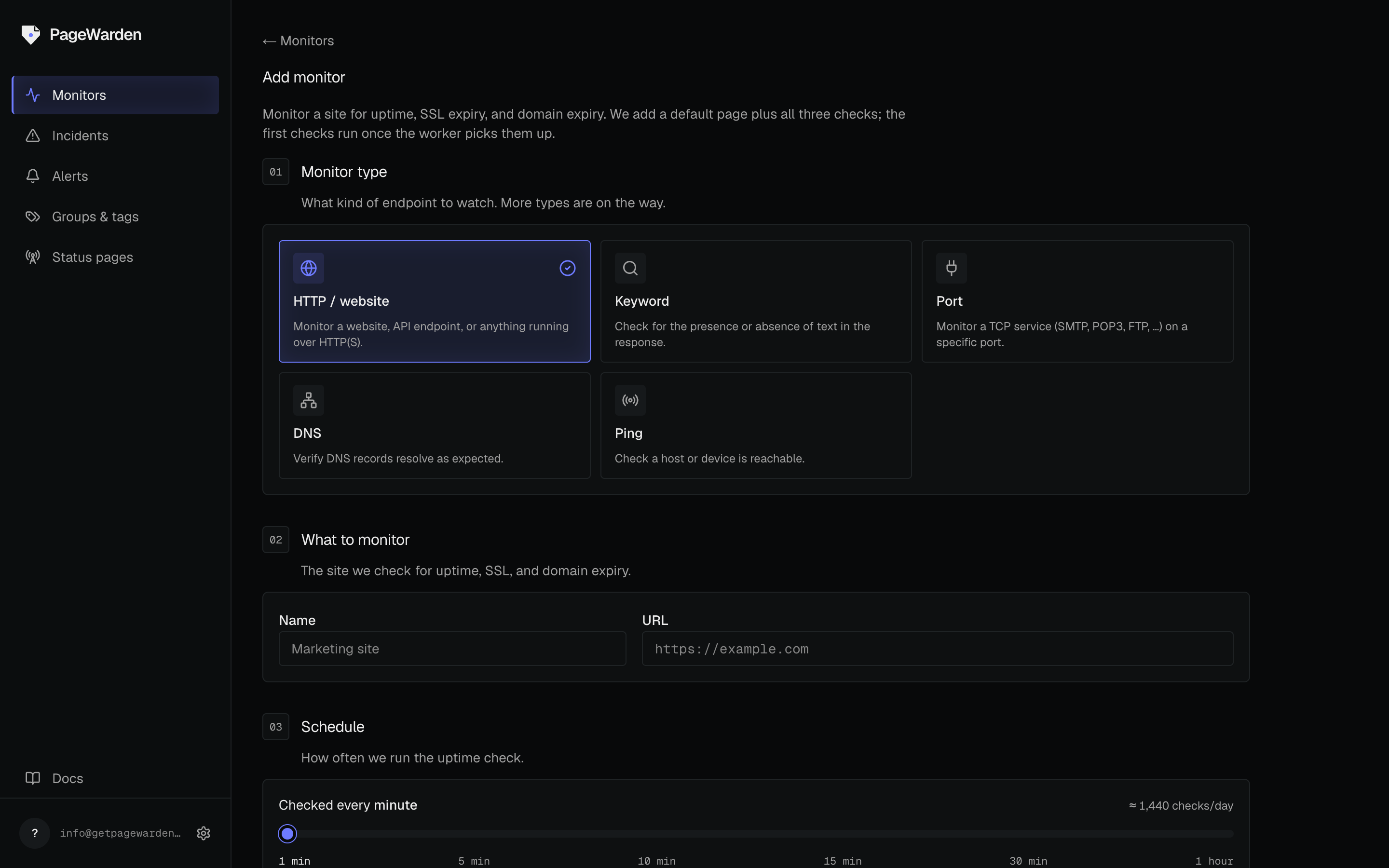
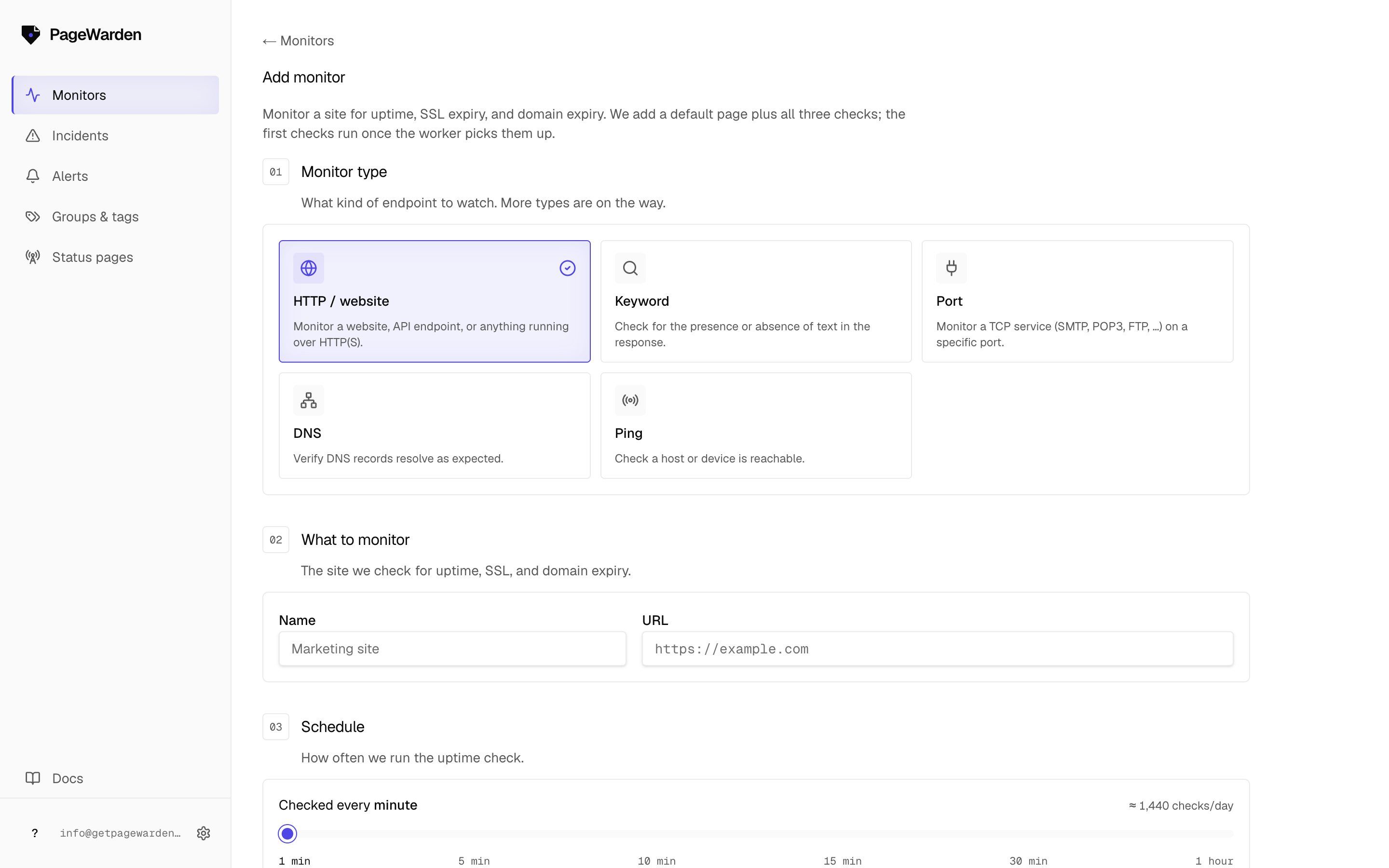
Your monitor appears on the dashboard. The first check runs within a minute or two, and the status settles to a real result shortly after.
What the first status means
A brand-new monitor may show as pending until its first check completes. Give it a minute. If it then shows down and you are sure the site is up, see My site shows Down but it is up.
What gets checked
When you add a website, PageWarden automatically watches three things: whether the page loads (uptime), whether its HTTPS certificate is valid and not about to expire (SSL), and whether the domain name is close to lapsing (domain expiry). You do not have to set those up separately.
Watching something other than a website
PageWarden can also watch a server or service directly. See Port, DNS, and Ping.